 MyWika
How MyWika Works
Eleven steps. Each one takes a minute.
1
Add a Language
Pick a ready-made pack, or build one no one else has.
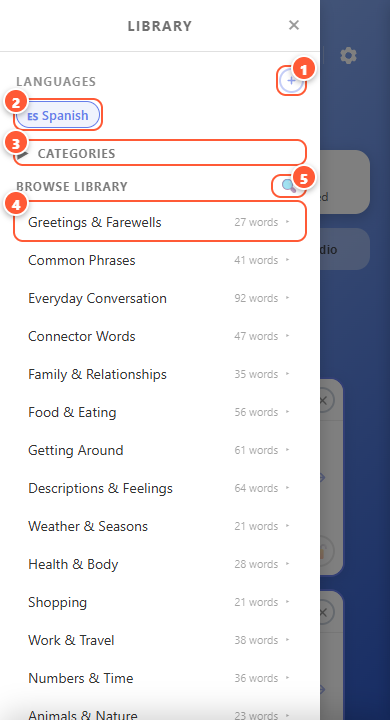
- 1Add a new language.
- 2Your languages. Tap one to hide or show its cards. Hold it to edit or remove it.
- 3Categories. Pick which topics show up in your cards.
- 4Open a topic to see its words.
- 5Search every word in the Library.
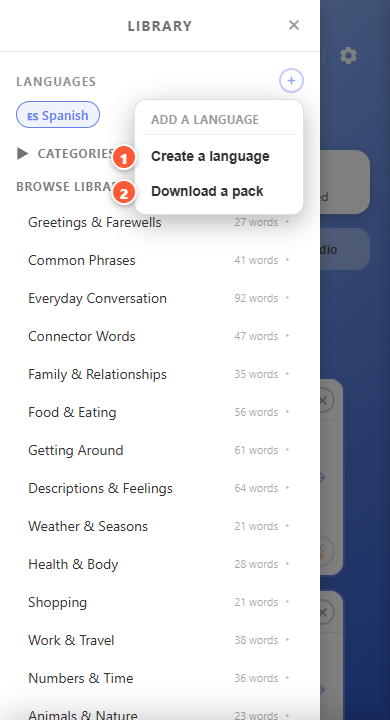
- 1Create a language from scratch, all your own.
- 2Download a pack that’s ready to go.
2
Add Cards From the Library
Every pack comes full of words, sorted by topic.
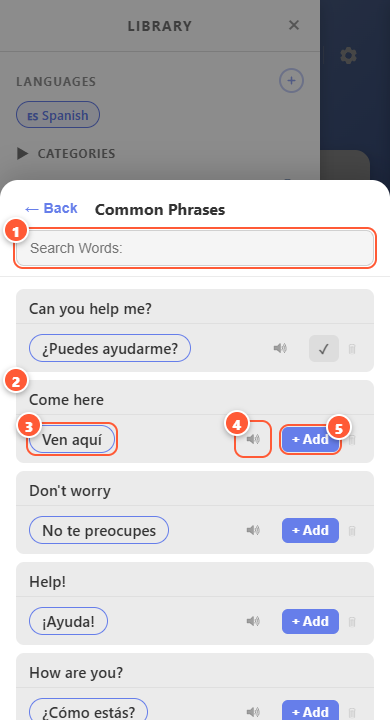
- 1Search this topic.
- 2The word in your language.
- 3The same word in the language you’re learning.
- 4Hear how it sounds.
- 5Add it to your cards.
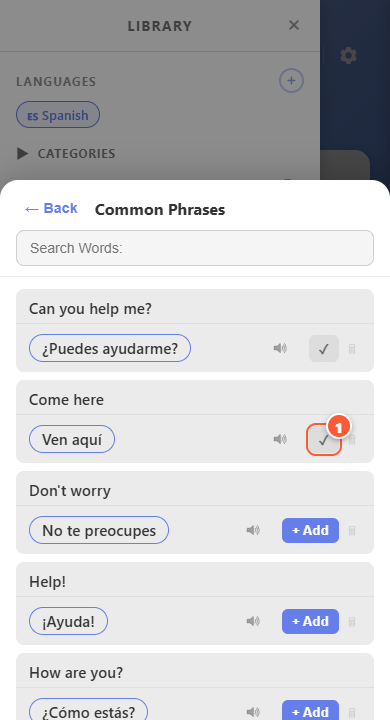
- 1A check means it’s in your cards now.
3
Know Your Card
Every button on a card has one job.
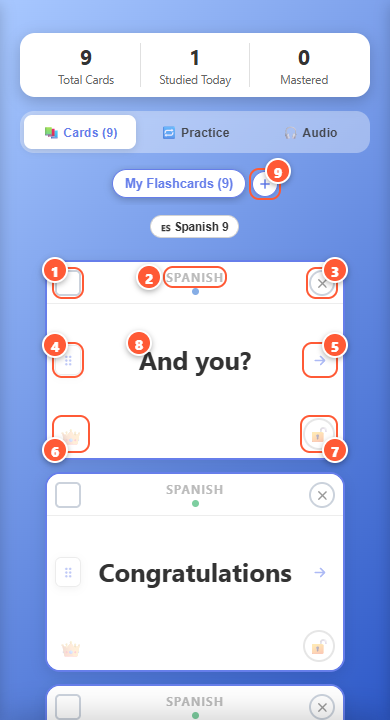
- 1Studied. Tap it to check the card off for today.
- 2The language this card belongs to.
- 3Delete the card.
- 4Drag here to move the card around your deck.
- 5Send it to Practice, or to another deck.
- 6The crown. Tap it when you think you know the card.
- 7Lock it so it can’t be moved, edited or deleted.
- 8Tap the card to flip it. Hold it to edit.
- 9Start a new deck.
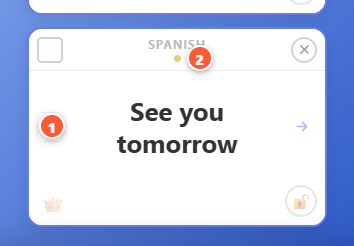
- 1The word in your language.
- 2The dot: green is a word, yellow is a phrase, blue is a sentence.
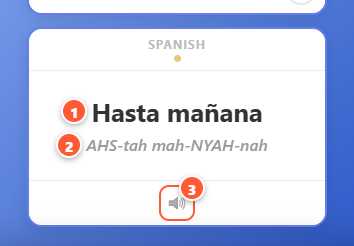
- 1The word in the language you’re learning.
- 2How to say it.
- 3Tap to hear it out loud.
4
Master a Card
Know it? Crown it, and it moves out of your way.
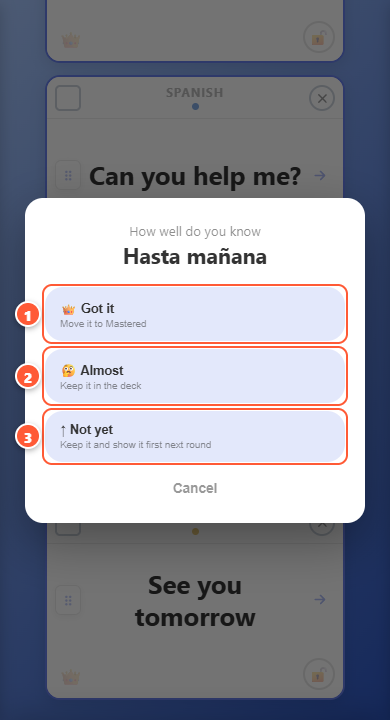
- 1Got it moves the card to Mastered.
- 2Almost keeps it in your deck.
- 3Not yet keeps it and shows it first next round.
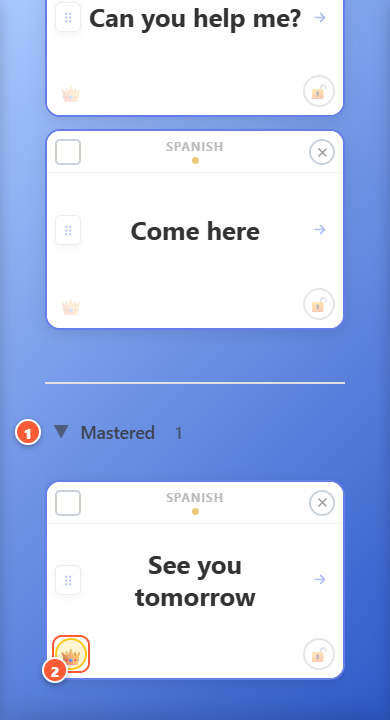
- 1Mastered cards wait at the bottom of your deck. The count at the top shows how many.
- 2A gold crown means mastered. Tap it again to put the card back in your deck.
5
Make Your Own Card
Heard a new word? Save it before you forget it.
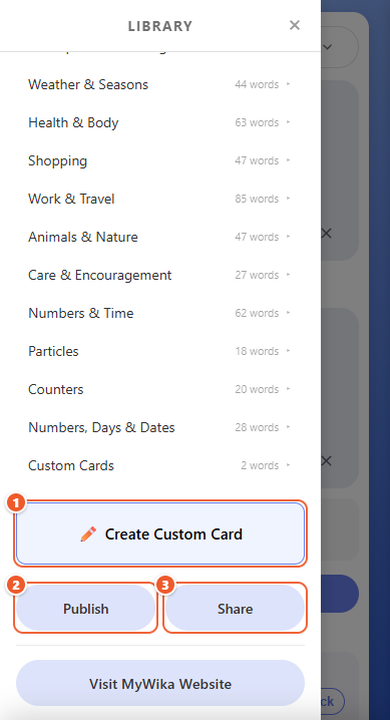
- 1Make a card from scratch.
- 2Publish: send your words or a deck to your community profile, then finish and publish it there. Needs a free account.
- 3Share: send or get cards with a code. Coming soon.
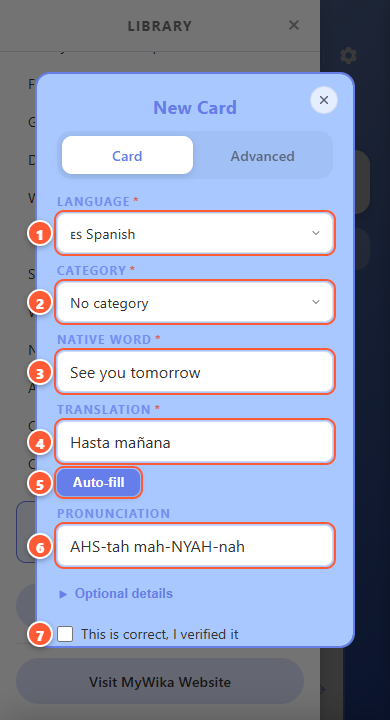
- 1The language it belongs to.
- 2The topic to file it under.
- 3The word in your language.
- 4The word in the language you’re learning.
- 5Auto-fill fills in the translation for you (needs internet).
- 6How to say it, written the way it sounds to you.
- 7Tick this once you know it’s right, then tap Create card.
6
Set Your Own Streak
You decide what counts as a day.
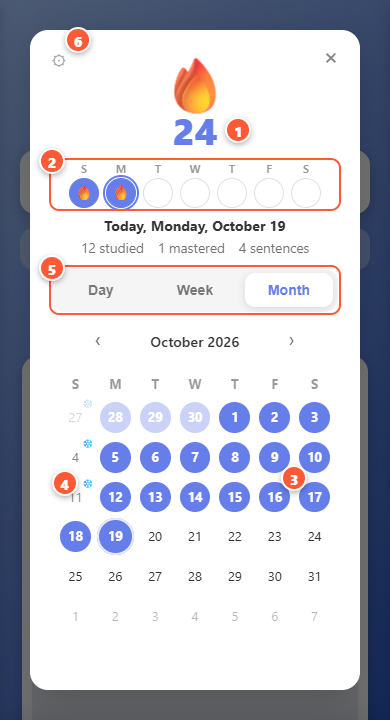
- 1Your streak: how many days in a row.
- 2This week. 🔥 a big day, 💧 a little, ❄️ nothing yet.
- 3A day you studied.
- 4A rest day. Miss one day and your streak is safe. Miss two and it starts over.
- 5See one day, one week or a whole month.
- 6The gear sets your goal.
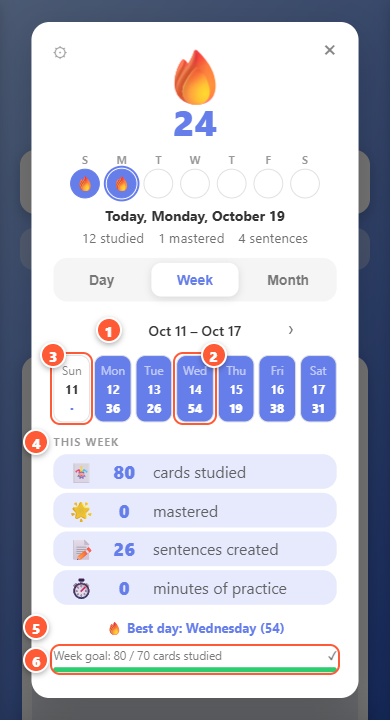
- 1Pick any week.
- 2Each day: the date, and how much you did.
- 3A day off.
- 4Your totals for the week.
- 5Your best day.
- 6Your week goal, and how close you are.
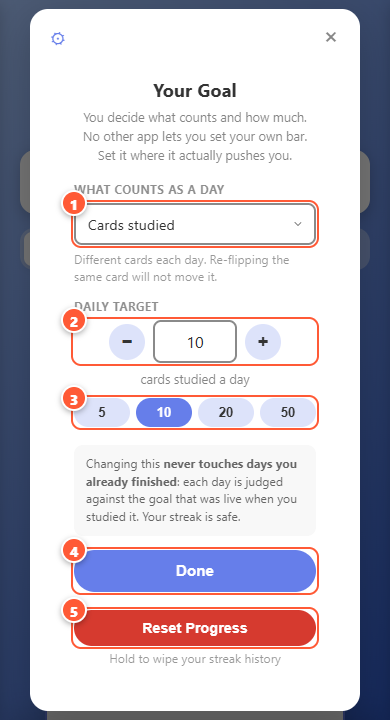
- 1What counts as a day: anything, cards studied, flips, rounds, cards mastered or practice minutes.
- 2How many a day.
- 3Quick picks.
- 4Save your goal. Days you already finished never change.
- 5Hold to wipe your streak and start fresh.
7
Use the Practice Translator
Write it yourself. That’s how it sticks.
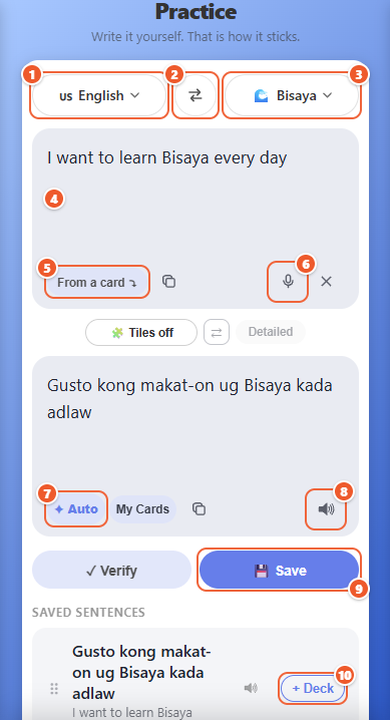
- 1The language you speak.
- 2Swap the two.
- 3The language you’re learning.
- 4Write a word or sentence here.
- 5Pull the words in from one of your cards.
- 6Talk instead of typing.
- 7Auto translates as you type. Tap it to turn it off.
- 8Hear it out loud.
- 9Save it to your list.
- 10Turn a saved sentence into a card.
8
Teach It Your Words
Turn on My Cards and it translates from your own cards first. No internet needed.
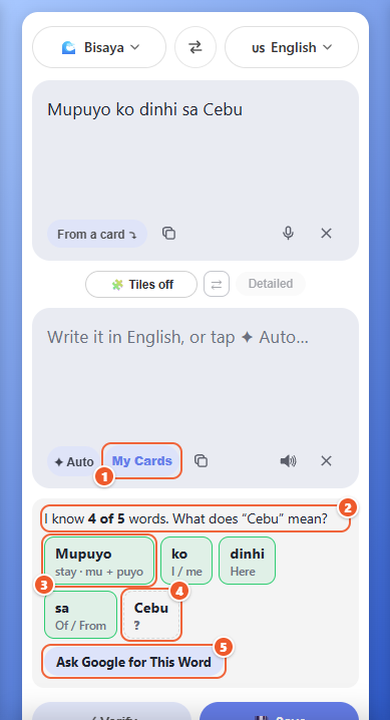
- 1Tap My Cards. It looks in your cards before it asks Google.
- 2How many of your words it already knows.
- 3Green means it knows the word. It even spots the pieces, like mu + puyo.
- 4A ? is a word it doesn’t know yet. Tap it and teach it.
- 5Not sure? Ask Google for just that word.
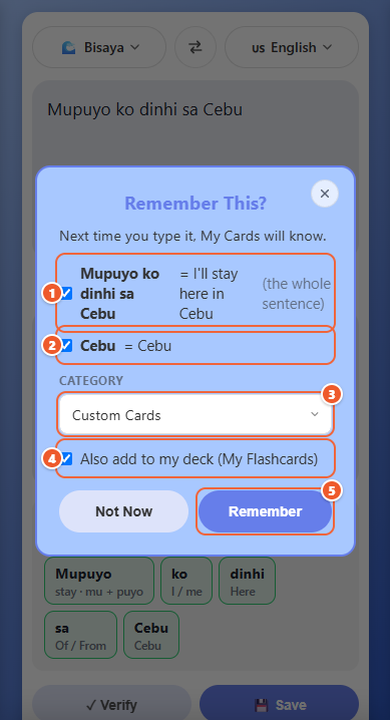
- 1The whole sentence, so next time it’s finished for you.
- 2The new word you taught it.
- 3The topic to file them under.
- 4Add them to your deck too.
- 5Tap Remember.
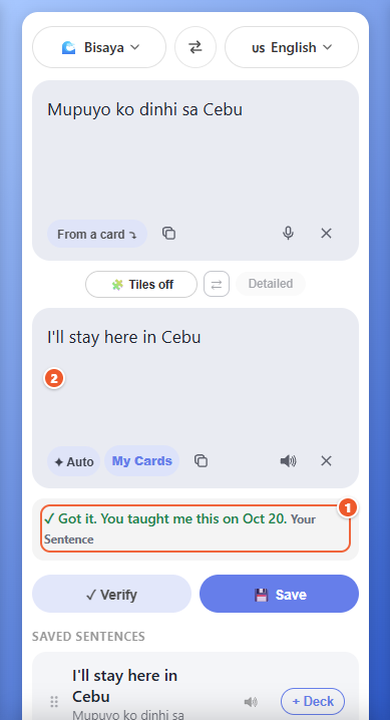
- 1It remembers what you taught it, and when.
- 2The translation fills in by itself.
9
Tiles and Chunks
Break a sentence apart and see how it’s built.
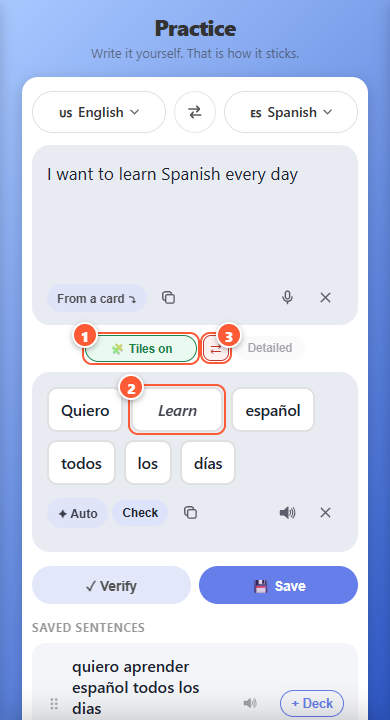
- 1Tap Tiles to split your sentence into words.
- 2Tap a tile to flip it and see what it means. Hold it to edit.
- 3Flip every tile at once.
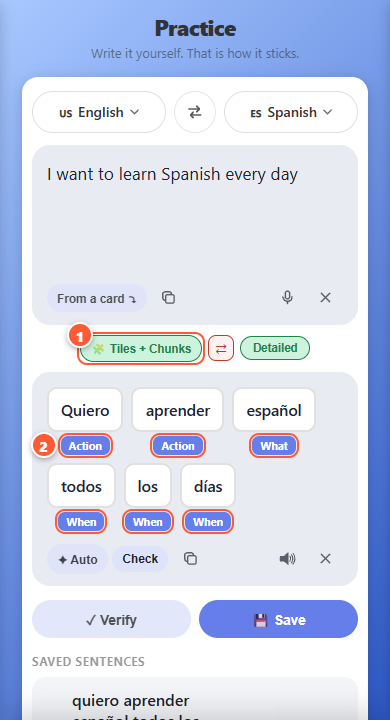
- 1Tap Tiles again for Tiles + Chunks.
- 2Each word gets a label for its job: Action, Who, What, Where, When, Why or How.
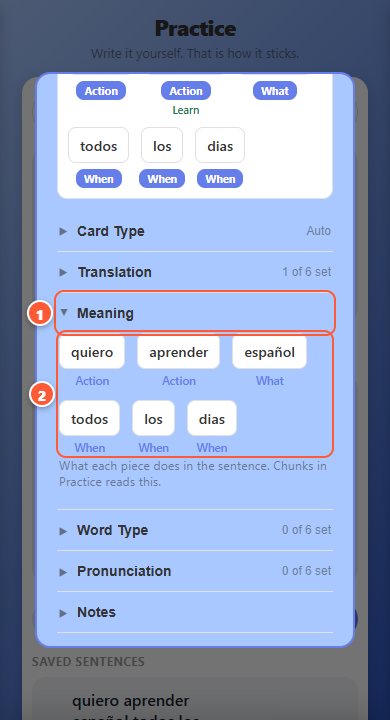
- 1Hold a card to edit it, then open Advanced and Meaning.
- 2Pick a label for each word. That word keeps its label in every sentence.
10
Test Yourself
Done practicing? See if you got it right.
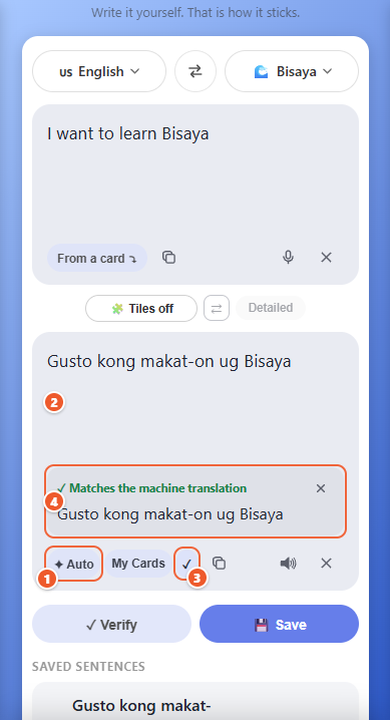
- 1Turn Auto off.
- 2Write the translation yourself.
- 3Tap Check (a ✓ on phones).
- 4The machine translation shows under yours. ✓ Matches means you got it.
11
Make It Yours
Tap the gear at the top right.
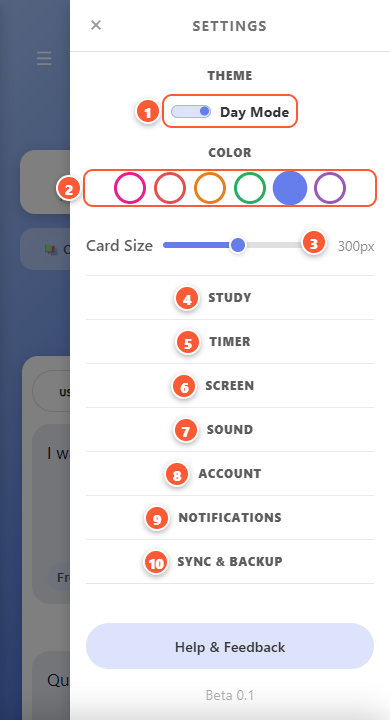
- 1Day or night.
- 2Pick your color.
- 3Make the cards bigger or smaller.
- 4Study: cards come back fresh each day, auto-flip, and reverse mode.
- 5Timer: a practice timer with a daily goal.
- 6Screen: full screen and landscape.
- 7Sound: how fast words are read out loud.
- 8Account: create an account, sign in, and set up your community profile.
- 9Notifications: turn reminders on or off.
- 10Back Up & Restore: save everything, one deck or one pack to this device, bring in cards from other flashcard apps, or use the cloud and sync across your devices.